I recently purchased a license for a game server hosting admin panel called AMP. I purchased it to make it a bit easier to manage disparate game servers, and to simplify backups.
It supports a wide variety of game servers, however it doesn’t have direct support for modded minecraft modpacks outside of the FTB mod packs.
Steps
Prerequisites
This guide assumes you have a working AMP installation, and basic knowledge of sftp/ssh.
1. Create The Instance
Navigate to the instances view and click on the create a new instance button.
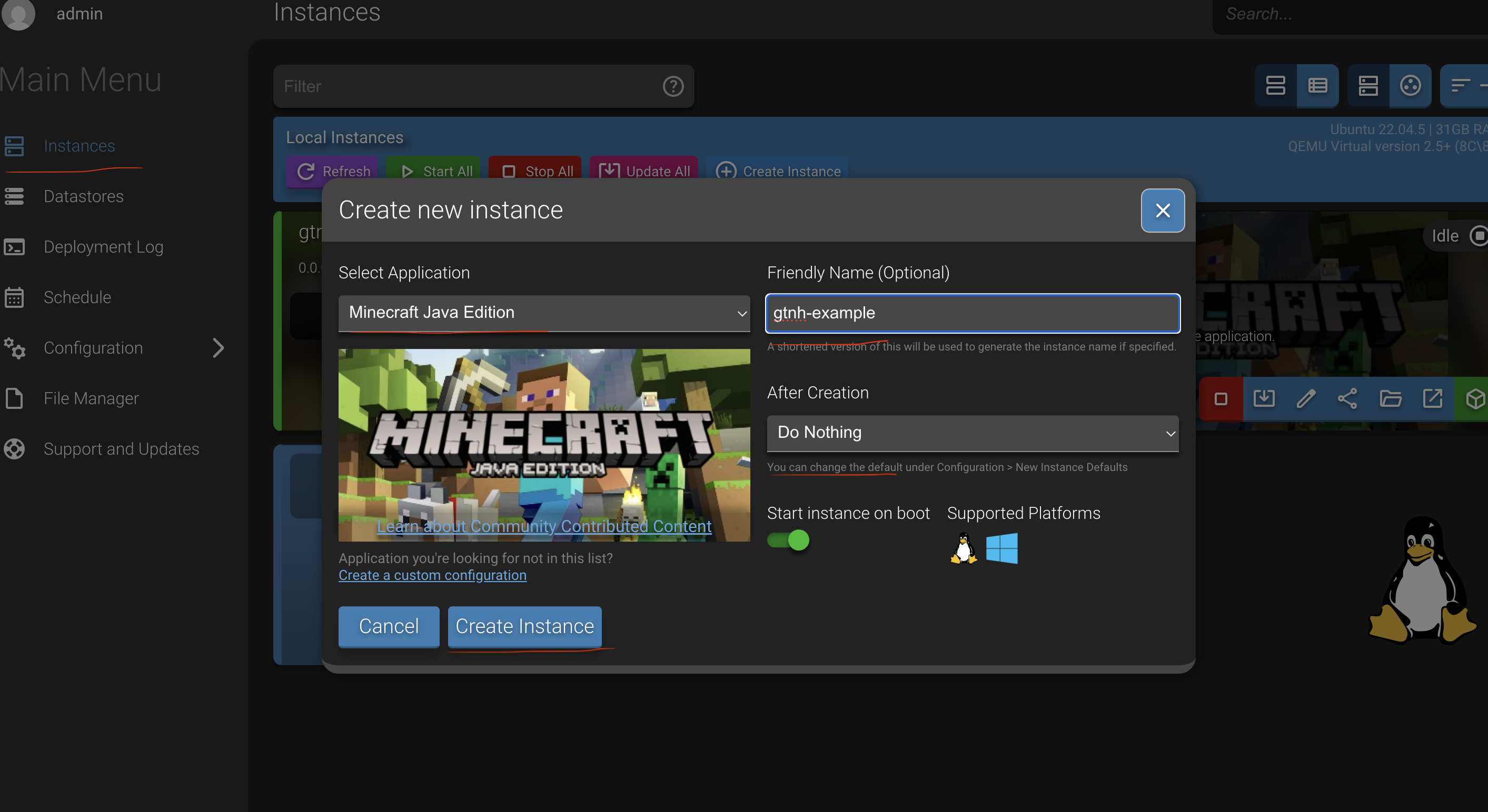 Select
 Minecraft Java Edition as the game server type, populate the name, and then select Do Nothing
2. Download GTNH Server Files
Now we need to have AMP download the GTNH server files.
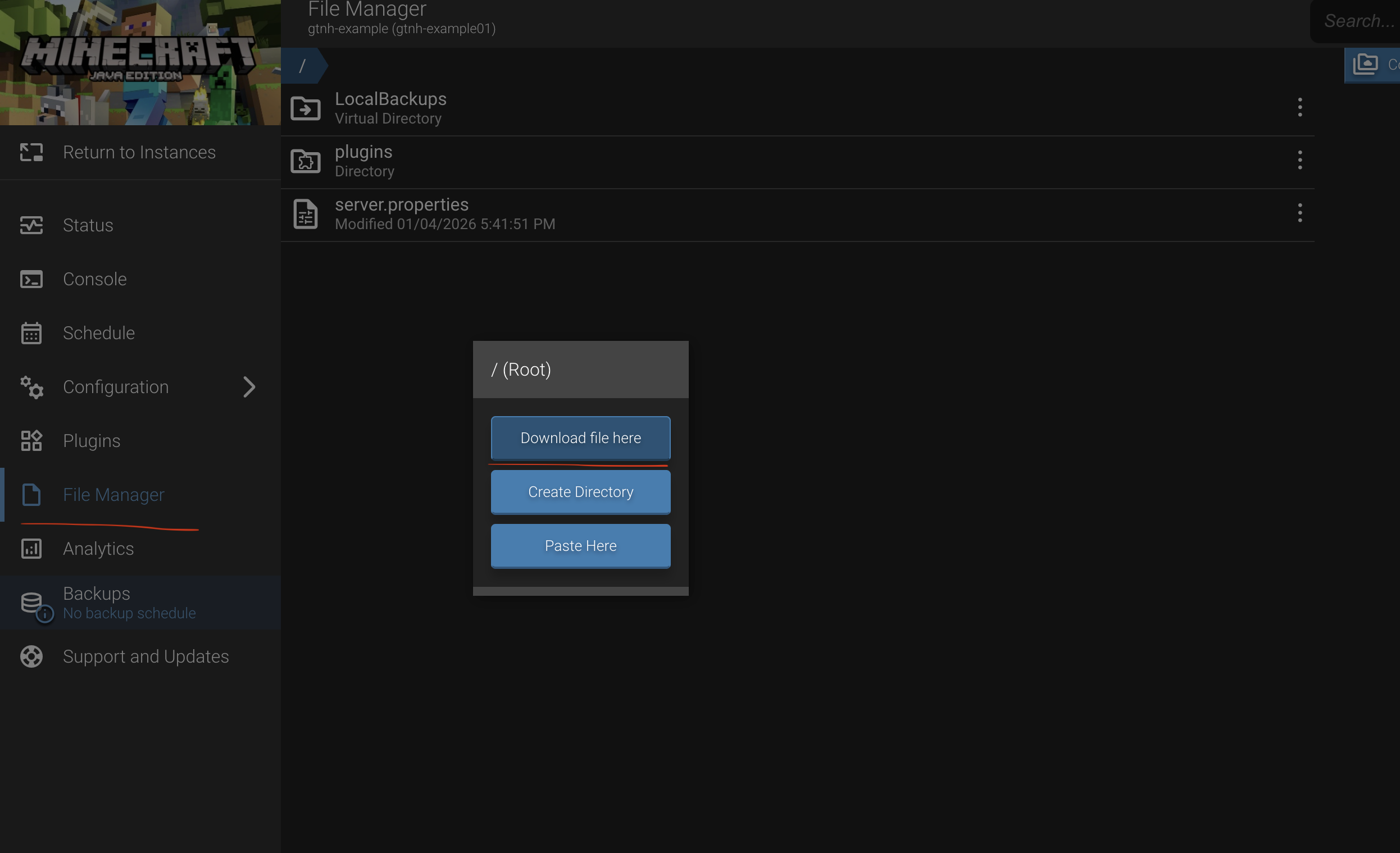
Open the instance, and then navigate to the File Manager.
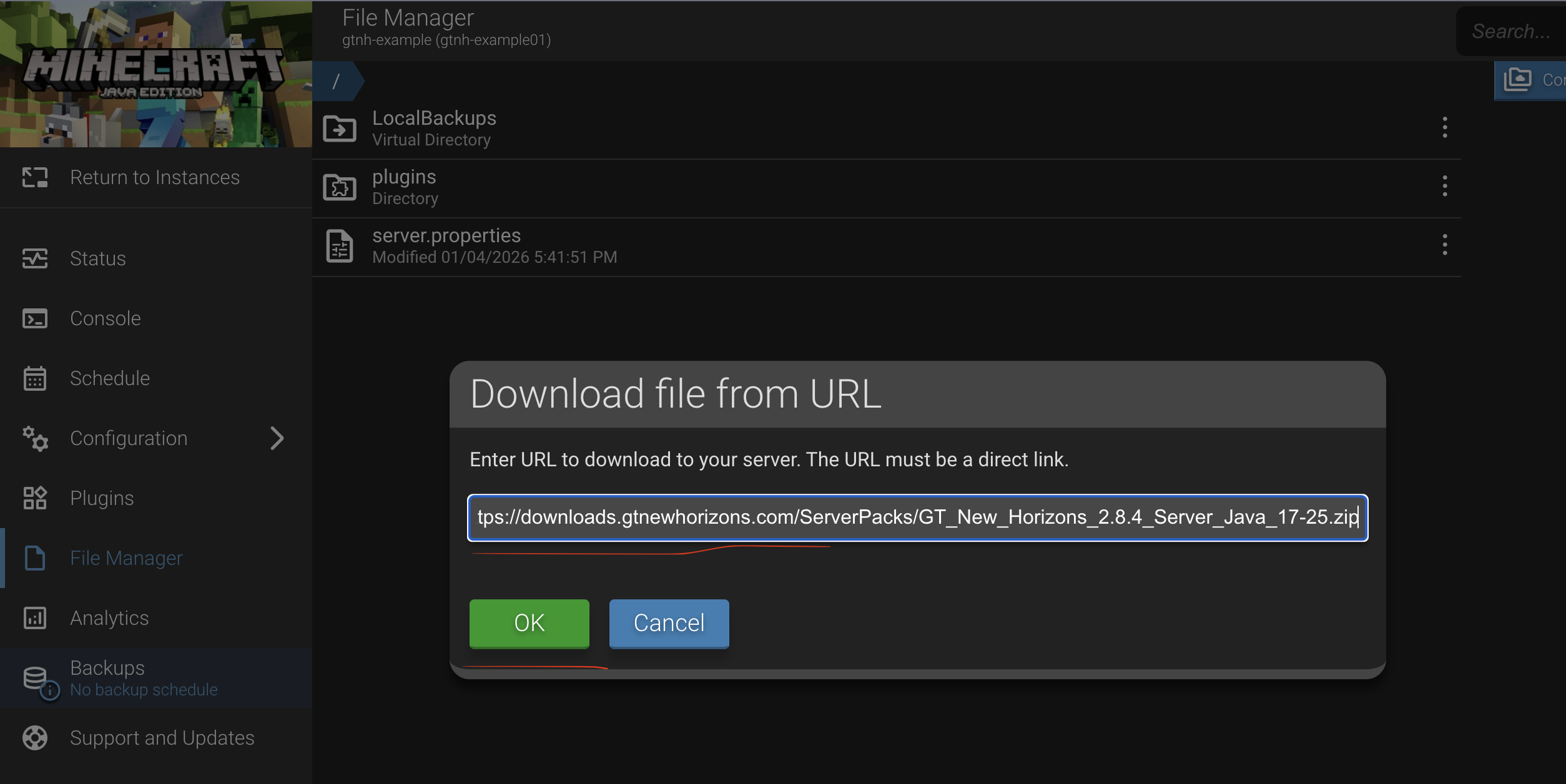
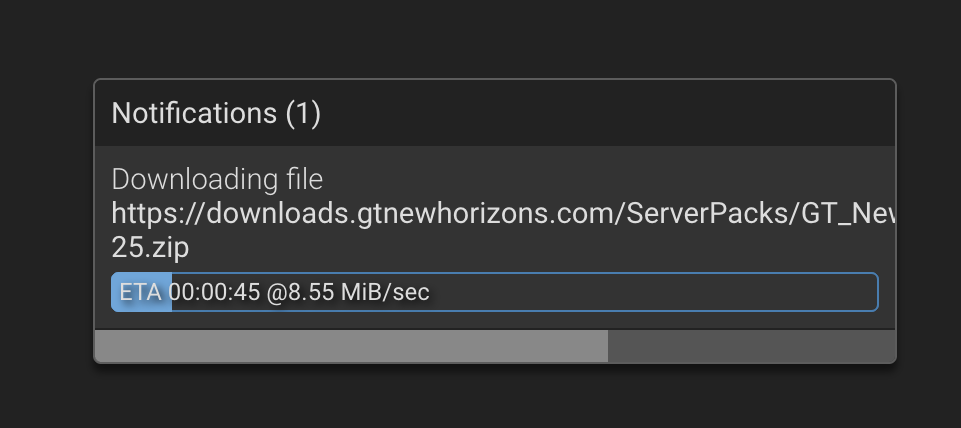
Right click inside the file tree and select Download file here. A dialog will then appear, and you can paste in the url to the server files.
The URL can be obtained from the GTNH website.
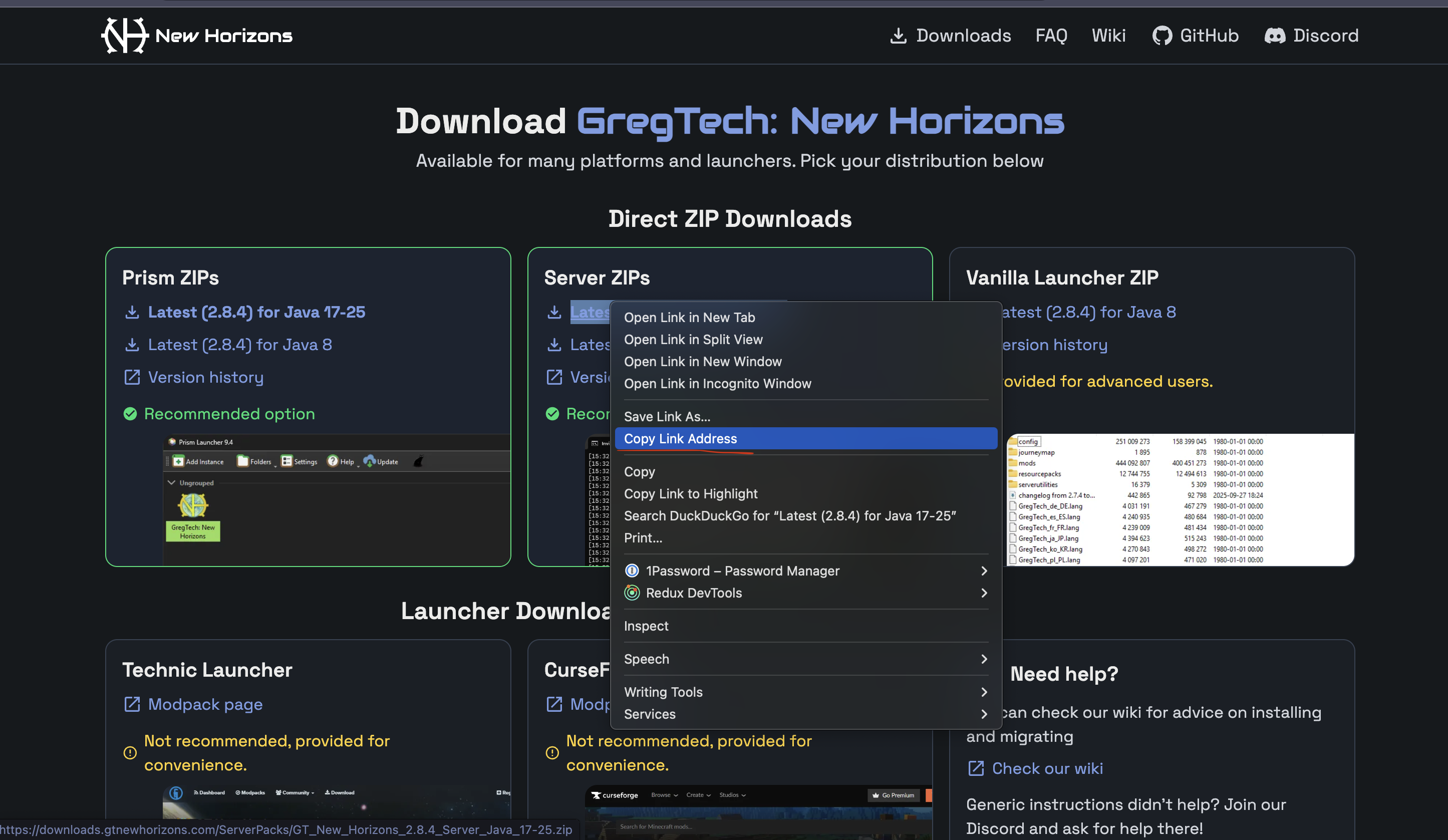
Example: https://downloads.gtnewhorizons.com/ServerPacks/GT_New_Horizons_2.8.4_Server_Java_17-25.zip
Wait for the download to complete.
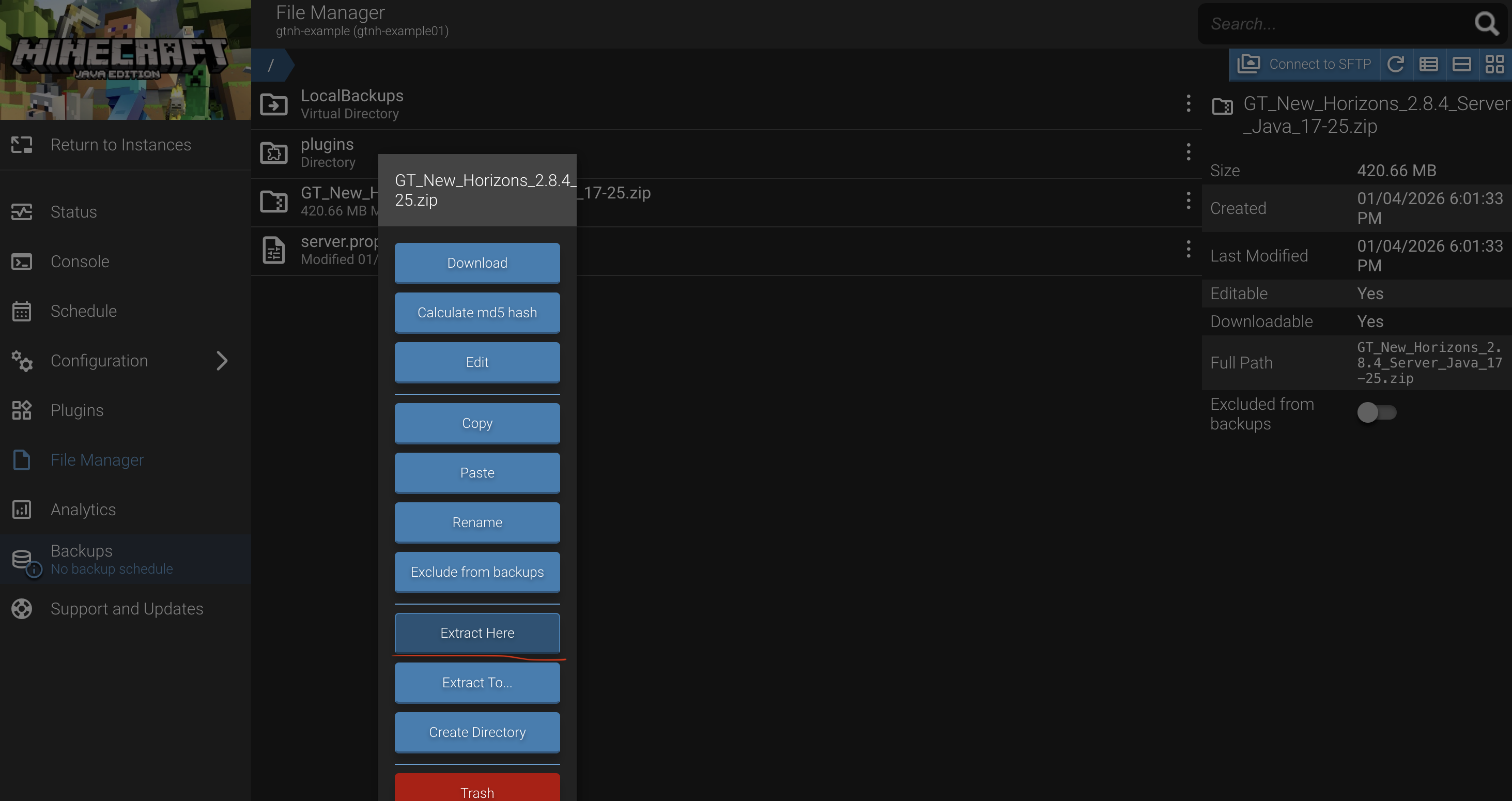
Now right click on the zip file and select Extract here.
3. Configure The Minecraft Settings
Now we need to configure the Minecraft settings. Select Configure, and then Minecraft on the left sided navigation.
Java and Memory Settings
Navigate to the Java and Memory Settings tab.
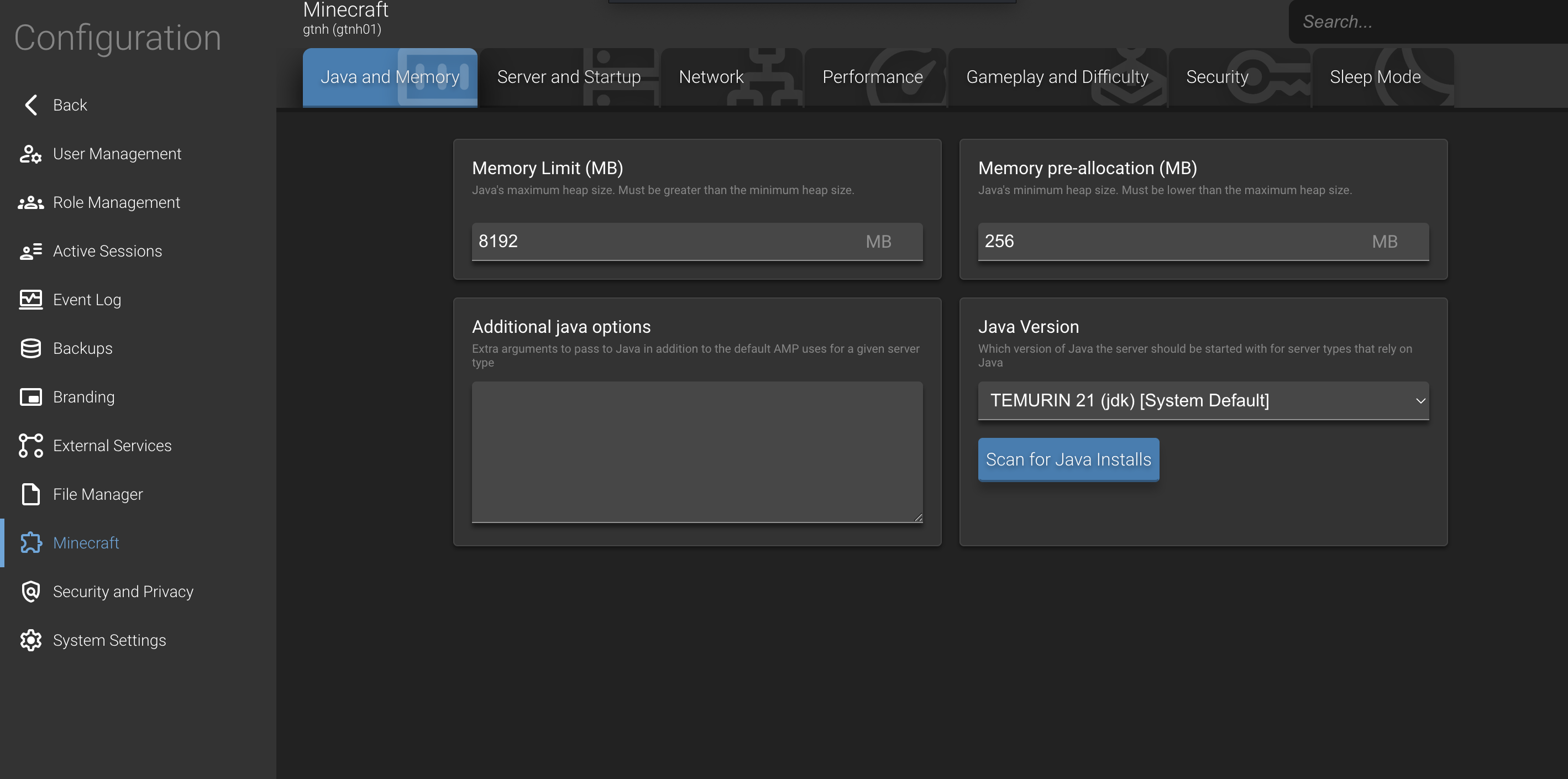
Set the Java version to 21, and the memory to 8192 MB (or another value if you prefer).
Server and Startup Settings
Navigate to the Server and Startup Settings tab.
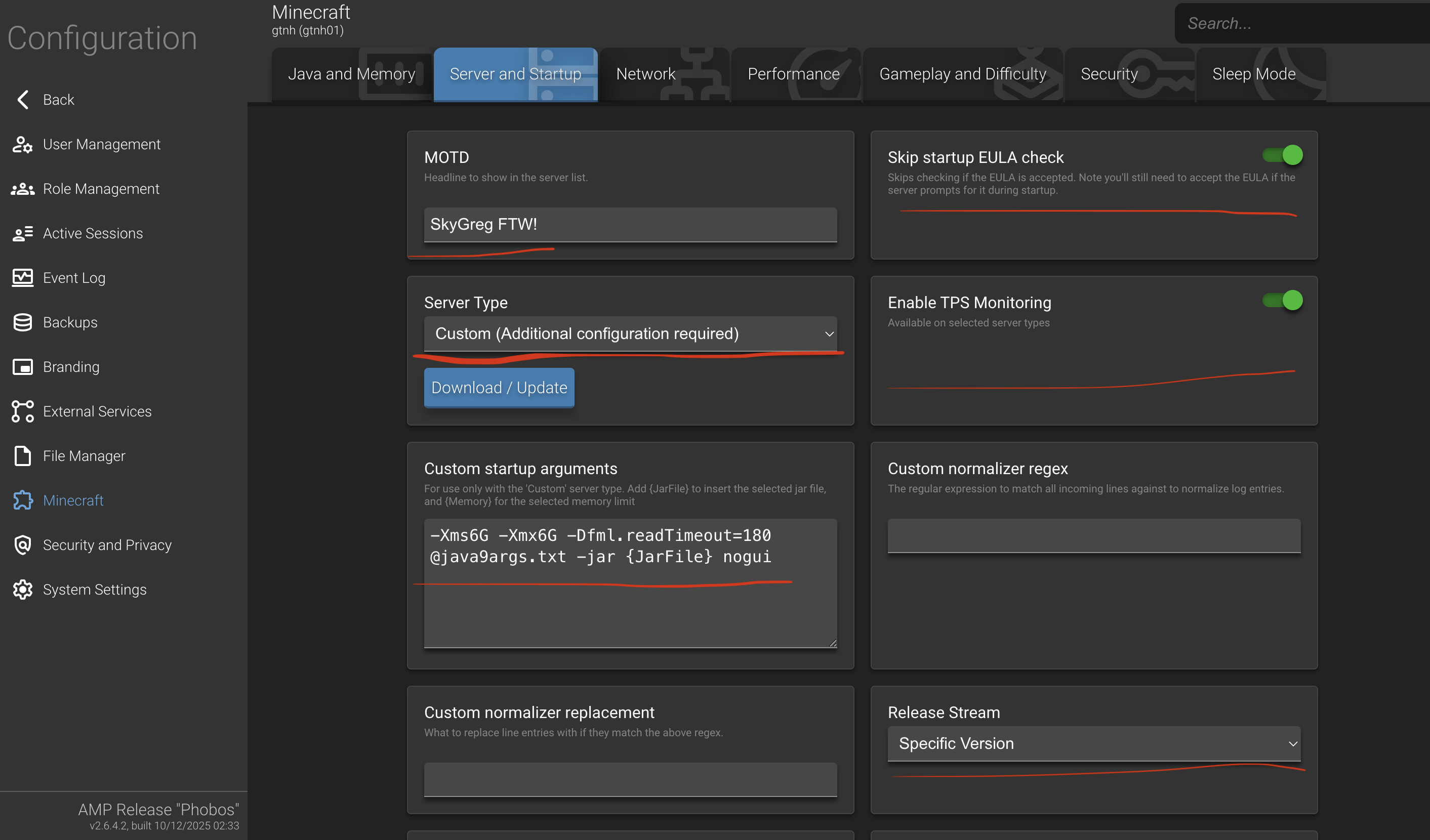
- Set the MOTD
- Enable the
Skip Eulacheckbox - Set the server type to
custom - Enable TPS Monitoring
- Set the custom args to
-Xms6G -Xmx6G -Dfml.readTimeout=180 @java9args.txt -jar {JarFile} nogui
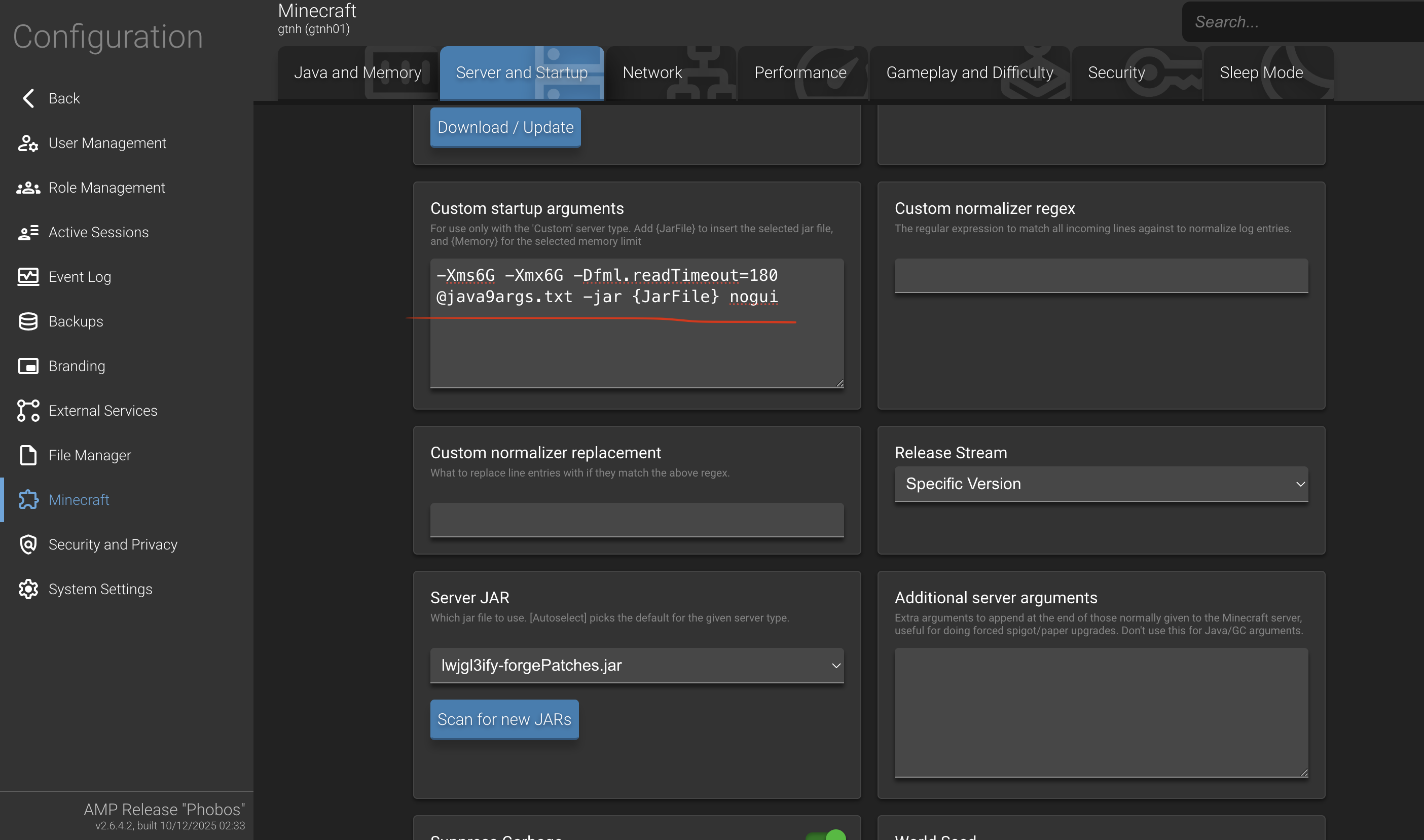
- Click
Scan for new JARsunderServer JAR - Select
lwjgl3ify-forgePatches.jarin the drop down.
4. Start the Server
Navigate back to the status page, and click Start. Shortly after a dialog should pop up asking if you accept the EULA. Accept the EULA, and the server should be good to go.